
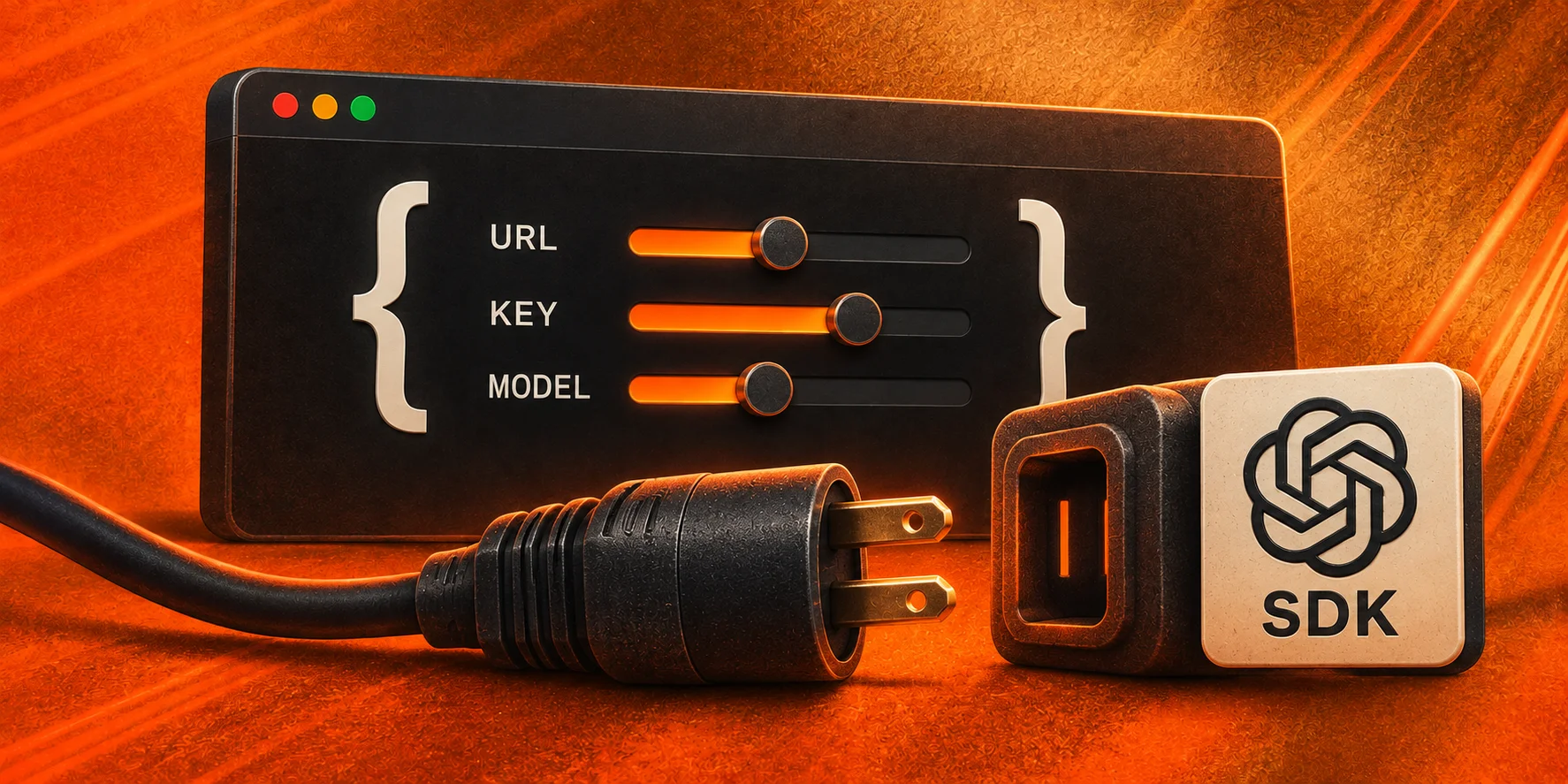
An OpenAI-compatible migration starts with three configuration changes: the base URL, API key, and model ID. Production readiness requires a test for every endpoint and field your application uses.
LLMBase documents an OpenAI-compatible models and chat-completions API. Compatibility does not cover every endpoint or vendor-specific extension.
1. Install the SDK and protect the key
Install the official JavaScript SDK in your server-side application:
npm install openaiCreate an inference API key in the LLMBase dashboard. Store it in a server-side secret or environment variable. Do not put a key in browser code, a mobile bundle, a public repository, or analytics data.
LLMBASE_API_KEY=llmbase_...
LLMBASE_MODEL_ID=<model-id-from-the-current-catalog>
2. Change the base URL
import OpenAI from "openai";

const client = new OpenAI({
  apiKey: process.env.LLMBASE_API_KEY,
  baseURL: "https://api.llmbase.ai/v1",
});
Keep the /v1 suffix. The SDK adds the endpoint path and sends the key as a Bearer token.
3. Discover a current model ID
Read the model list instead of copying an ID from an old article:
const models = await client.models.list();

for (const model of models.data) {
  console.log(model.id);
}

const modelId = process.env.LLMBASE_MODEL_ID;
if (!modelId || !models.data.some((model) => model.id === modelId)) {
  throw new Error("Set LLMBASE_MODEL_ID to an ID returned by /v1/models");
}
Check the current catalog for context, input types, tools, structured output, processing location, and prices before selecting a model.
4. Send a chat-completions request
const response = await client.chat.completions.create({
  model: modelId,
  messages: [
    { role: "system", content: "Answer product questions in plain language." },
    { role: "user", content: "Explain password reset in three steps." },
  ],
  max_completion_tokens: 250,
});

console.log(response.choices[0]?.message?.content);
Use only fields documented for the endpoint and supported by the selected model. Keep a request identifier and non-sensitive error context in logs. Do not log keys or Customer Content by default.
5. Test streaming
const stream = await client.chat.completions.create({
  model: modelId,
  messages: [{ role: "user", content: "Write four lines about clear API design." }],
  stream: true,
});

for await (const chunk of stream) {
  process.stdout.write(chunk.choices[0]?.delta?.content ?? "");
}
Test normal completion, client cancellation, timeouts, and a structured error. Do not assume that a successful first chunk means the stream completed.
6. Continue after a tool call
Use tools only with a model that lists native tool support. The application must execute the function and send the result back with the matching tool-call ID.
const first = await client.chat.completions.create({
  model: modelId,
  messages: [{ role: "user", content: "What is the order status for A-104?" }],
  tools: [{
    type: "function",
    function: {
      name: "get_order_status",
      description: "Read the current status of one order.",
      parameters: {
        type: "object",
        properties: { order_id: { type: "string" } },
        required: ["order_id"],
        additionalProperties: false,
      },
    },
  }],
  tool_choice: "required",
});

const assistantMessage = first.choices[0]?.message;
const toolCall = assistantMessage?.tool_calls?.[0];
if (!assistantMessage || !toolCall || toolCall.type !== "function") {
  throw new Error("Expected a function tool call");
}

const toolResult = JSON.stringify({ order_id: "A-104", status: "processing" });
const final = await client.chat.completions.create({
  model: modelId,
  messages: [
    { role: "user", content: "What is the order status for A-104?" },
    assistantMessage,
    { role: "tool", tool_call_id: toolCall.id, content: toolResult },
  ],
});

console.log(final.choices[0]?.message?.content);
Validate function arguments before calling your code. Apply authorization at the tool boundary and return the smallest result the model needs.
7. Request structured output where supported
const structured = await client.chat.completions.create({
  model: modelId,
  messages: [{ role: "user", content: "Classify: The invoice total is wrong." }],
  response_format: {
    type: "json_schema",
    json_schema: {
      name: "ticket_classification",
      strict: true,
      schema: {
        type: "object",
        properties: {
          category: { type: "string", enum: ["billing", "technical", "other"] },
          urgent: { type: "boolean" },
        },
        required: ["category", "urgent"],
        additionalProperties: false,
      },
    },
  },
});

const classification = JSON.parse(structured.choices[0]?.message?.content ?? "{}");
Schema acceptance and output behavior depend on the model. Validate parsed data in your application even when strict mode is available.
8. Keep a minimal migration test
Run this test in staging before changing production traffic:
import assert from "node:assert/strict";

const catalog = await client.models.list();
assert(catalog.data.some((model) => model.id === modelId));

const check = await client.chat.completions.create({
  model: modelId,
  messages: [{ role: "user", content: "Reply with exactly: migration-ok" }],
  max_completion_tokens: 20,
  temperature: 0,
});

assert.equal(check.choices[0]?.message?.content?.trim(), "migration-ok");
Add a streaming assertion when the product streams. Add a forced tool-call and tool-result continuation when it uses tools. Add schema validation when it depends on structured output.
Compatibility boundaries to record
Document the endpoint, SDK version, request fields, model ID, timeout, retry policy, and expected error shapes in your repository. Treat Responses, Assistants, fine-tuning, files, batches, or other endpoints as unsupported until the LLMBase documentation names them.
Use the models endpoint, OpenAI compatibility guide, and chat-completions reference as the implementation contract. Compare current models and prices on the European AI API page.